Universal Credit Not Sending Code | What to Do If You Don’t Receive the Text?
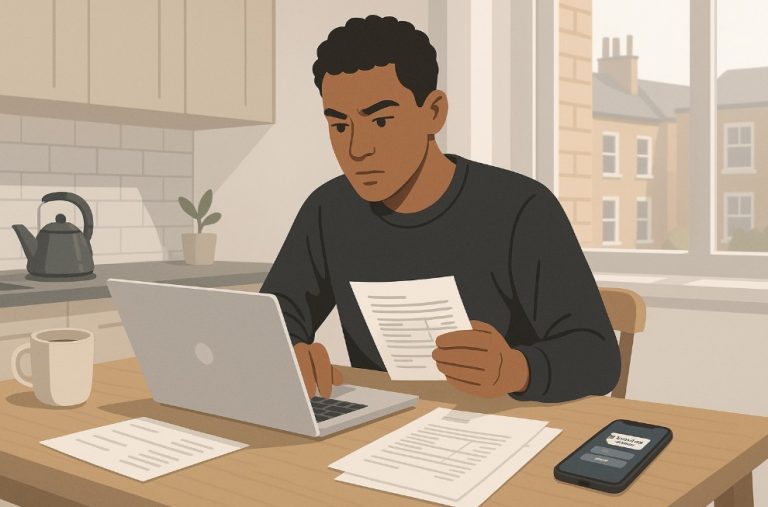
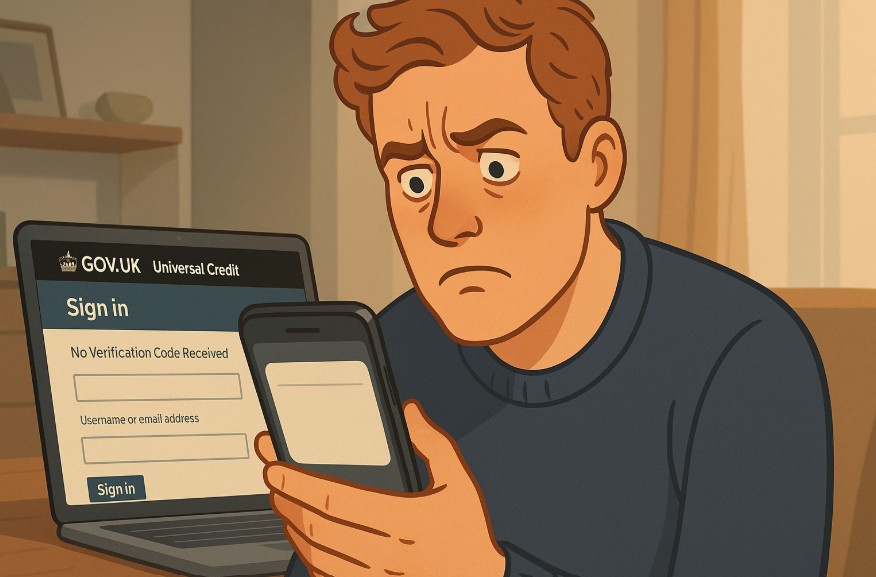
If you’re waiting for a Universal Credit verification code that never arrives, you’re not alone. Many users across the UK face this issue, making it difficult to log in or complete their claims.
Delays or failures in code delivery are usually tied to mobile signal, incorrect phone details, or technical issues with delivery systems. Thankfully, several simple troubleshooting steps and alternative methods exist to fix the problem.
This guide walks you through practical solutions, from checking your phone number to using email and authenticator apps, so you can regain access to your account quickly and securely.
Why Aren’t You Receiving Your Universal Credit Verification Code?
Failure to receive a Universal Credit code can stem from multiple sources, not just a glitch in the system. It’s essential to approach the issue systematically by ruling out potential causes.
Some common reasons include:
- Poor or no mobile signal
- Your phone number was entered incorrectly
- The sender may be blocked on your device
- Your inbox may be full or restricted
- You recently changed networks or providers
- Device settings blocking SMS delivery
- Using an international or business phone number
These technical or administrative errors can delay or completely block the verification process. Before trying more complex solutions, it’s vital to check the basics like reception, formatting, and blocked senders. Let’s start by narrowing down network-related issues that could be affecting code delivery.
Could It Be a Network or Signal Issue?
Signal strength plays a crucial role in receiving SMS codes. If your mobile is in a location with poor reception, such as a basement, rural area, or inside a building with thick walls, you might not receive the message promptly or at all. Check your signal bars and try moving to an open space.
Also, make sure your device isn’t in Airplane mode, which disables all connectivity, including SMS. Sometimes, toggling Airplane mode on and off refreshes your connection. Restarting the phone can also help re-establish a stronger connection with the nearest cell tower.
For those using pay-as-you-go SIMs, an empty balance might prevent incoming SMS services. While receiving texts is typically free, some networks require a minimum balance for all services to function correctly.
How to Use the “Send the Code Again” Feature on GOV.UK?
GOV.UK systems provide a simple feature that allows you to request another code if the initial one fails to arrive. It’s the first and fastest solution you should try before escalating to support.
You can access this option through your login screen:
- Look for the “Send the code again” link below the input box
- Click or tap it once, then wait up to 15 minutes
- Ensure your phone has signal and sound enabled so you don’t miss the message
- Avoid multiple requests too quickly, as this can create conflicting codes
Important Tips for Resending the Code:
- Always wait a few minutes between requests
- Check if the original code arrives just before sending a second one
- If you request multiple codes, only the latest one will work
- Don’t share the code with anyone, even if requested
If resending the code doesn’t solve the issue, the next best step is to consider alternative verification methods such as email verification or using an authenticator app.
Can You Receive a Universal Credit Code by Email Instead of SMS?

Yes, email verification is often available as an alternative to text messages when creating or accessing your Universal Credit account. This method is especially helpful if you’re experiencing phone-related issues or using a non-UK mobile number.
During account setup, you’ll be prompted to provide an email address. Once entered, a verification code is sent to your inbox.
Make sure to enter the code within the specified time limit, usually one hour. If you miss the time window, you’ll need to request a new code by using the “Send again” link.
What If the Code Lands in the Spam or Junk Folder?
Email filters may mistake security messages for spam. If you don’t see the code in your main inbox:
- Open your Spam or Junk folder
- Look for messages from “GOV.UK” or “security code”
- Mark the message as “Not Spam” to prevent future issues
- Move the email to your primary inbox
Best Practices:
- Use a personal email instead of a work address
- Add GOV.UK to your email whitelist or safe sender list
- Avoid using temporary or outdated email accounts
If you’re using a business email, check with your IT team to ensure GOV.UK messages are not blocked by internal filters.
How Do You Verify Your Email in Time?
Timing is key when verifying via email. Each security code has a short expiration period, and delays can invalidate the code.
Steps to stay within the limit:
- Open the email as soon as it arrives
- Enter the code immediately after receiving it
- If the code expires, select “Send the code again”
- Don’t use an older code if you’ve requested multiple
Check the time limit (usually one hour) and set a quick reminder. Keeping your inbox refreshed will also help you spot the email quickly when it arrives.
How to Check If Your Phone Number Is Correctly Formatted?
Incorrectly entered phone numbers are a top reason for failed SMS code delivery. You should always verify the format of the number you’ve submitted to ensure it’s compatible with GOV.UK systems.
Proper Number Formatting
- Replace the leading 0 with +44
- No spaces or special characters (e.g., +44XXXXXXXXXX)
- Ensure it’s a UK mobile number, not a landline
Steps to Confirm and Edit
- Go back to your Universal Credit login or setup page
- Select “Use a different phone number”
- Re-enter your number using the correct format
- Save and proceed to receive a fresh verification code
Table: Common Number Format Errors and Fixes
| Incorrect Format | Correct Format | Issue Caused |
| 07123456789 | +447123456789 | Lacks an international prefix |
| +44 7123 456 789 | +447123456789 | Contains spaces |
| 07-123-456-789 | +447123456789 | Uses hyphens |
| Landline: 02012345678 | Not accepted | Not a mobile number |
Making sure your number is correct and formatted properly can save you from unnecessary delays in receiving your verification code.
Are You Using a Non-UK Mobile Number? – Here’s What to Do

If your phone number is from outside the UK, it may not be recognised by the GOV.UK system automatically. However, there is a specific process to accommodate international users.
Here’s What You Can Do:
- When asked to enter a number, select “I do not have a UK mobile number”
- Enter your international number in full with the correct country code
- Make sure your device is capable of receiving international SMS
- Avoid using virtual or online numbers, as these may not be supported
Before entering your number, ensure it’s active and has a strong signal. International text messages can also take longer to arrive, so allow extra time before requesting a resend.
What Should You Do If the Security Code Doesn’t Work?
Sometimes the code arrives, but it fails to work when entered. This usually happens due to expired or duplicate codes, or typing errors during input.
Could It Be an Expired or Duplicate Code?
Security codes are time-sensitive. Once expired, they’re no longer valid and will return an error. If you’ve requested multiple codes, only the most recent one will work.
Are You Entering the Most Recent Code?
If you requested a new code but entered the old one, it won’t function. Always use the last code received, and check the timestamp on the message. Deleting older messages can help avoid confusion.
Make sure to copy the code exactly as shown, avoiding accidental spaces or extra characters. If errors persist, request a new code and try again immediately.
Can You Use an Authenticator App Instead of SMS for GOV.UK One Login?
Yes, GOV.UK allows you to use an authenticator app as an alternative method for receiving your verification code. This is ideal for users with unreliable mobile networks or those travelling internationally.
Once enabled, the authenticator app generates time-based one-time passwords (TOTP) which can be used just like a text message code. Apps like Google Authenticator or Microsoft Authenticator are supported.
This method provides greater reliability and security. Just ensure the app is set up during your GOV.UK account creation process or updated later in your account settings.
How to Get Help from the Universal Credit Helpline and GOV.UK Support?
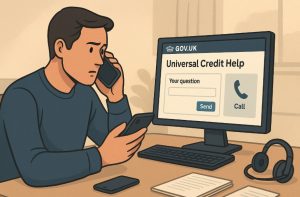
If all else fails, contacting support is a necessary step. GOV.UK and Universal Credit offer dedicated help channels for login issues.
Contacting Universal Credit Support
- Be ready with your full name, phone number, and service you’re trying to access
- Clearly explain the problem and what you’ve already tried
- Use official contact forms or helpline numbers only
GOV.UK One Login Support
- If your issue is specific to login verification, use the One Login help page
- Provide details like your email, device used, and screenshots if possible
- Avoid duplicate requests as it may delay response time
Support teams aim to respond quickly, and being prepared makes the process faster.
What Are Alternative Verification Options Beyond Text and Email?
For users consistently facing issues, GOV.UK supports additional identity verification options. These methods can be used during account setup or when verification codes fail repeatedly.
Available Alternatives Include:
- Face-to-face appointments
- Identity document upload
- Video call verification
- Authenticator apps
These methods are not always available instantly but may be offered as part of fallback procedures.
Table: Alternative Verification Methods Comparison
| Verification Method | Availability | Speed | Recommended For |
| Authenticator App | Immediate | Fast | Frequent travellers |
| Face-to-Face | By appointment | Medium | No access to mobile/email |
| Document Upload | Within setup | Varies | Photo ID holders |
| Video Verification | On request | Medium | Users with camera access |
Using an alternative verification route can help users who face persistent technical challenges.
Conclusion
When Universal Credit codes fail to arrive, it can delay vital steps in your claim or account access. Thankfully, most issues can be resolved by verifying your number, using the resend feature, or switching to email or an authenticator app.
Checking for signal issues, formatting errors, or spam filtering also helps avoid future delays. And if all else fails, reaching out to support will connect you to professionals who can guide you further.
By understanding these steps and alternatives, you’ll be better equipped to regain secure access quickly and confidently.
FAQs About Universal Credit Not Sending Code
Can I change the delivery method for Universal Credit codes later?
Yes, you can switch between SMS, email, or use an authenticator app in your GOV.UK login settings.
Is it safe to use an authenticator app instead of SMS for GOV.UK login?
Yes, authenticator apps are secure and often more reliable than text messages.
How do I reset my GOV.UK One Login password?
You can reset it through the login screen by selecting “Forgot your password?” and following the prompts.
Will requesting too many codes lock me out of my account?
It might temporarily block new requests, so wait a few minutes between attempts.
Why do I get codes I didn’t ask for from GOV.UK?
Someone may be trying to access your account; change your password to secure it.
Can I receive a code if I’m abroad or travelling?
Yes, but delivery may be delayed depending on your network provider and location.
What information should I have ready when calling Universal Credit support?
Have your full name, email, phone number, and details of the issue ready for quick help.